
Printer Fleet Manager - Administrator Guide
Product: ModuleSmith Printer Fleet Manager (PFM)
Module version: 19.0.7.1.1
Optional add-on: printer_fleet_manager_purchase 19.0.6.4.0
Platform: Odoo 19.0 (Community or Enterprise)
License: OPL-1 (commercial)
Audience: Odoo administrators and IT staff configuring and maintaining PFM
Support: [email protected]
1. About this guide
This is the administrator's companion to the daily User Guide. It covers security roles, network discovery, SNMP/OID configuration, the alert engine, notifications, the wallboard, licensing, and ongoing maintenance.
Deployment, prerequisites, Python dependencies, firewall rules, upgrade, and
uninstall are covered in depth in the Installation & Setup Guide
(pfm-INSTALL.md) and are not duplicated here. This guide points to that
document where appropriate and focuses on the day-two configuration an
administrator performs inside Odoo.
2. Installation summary
Full instructions live in pfm-INSTALL.md. In brief:
- Install the one Python dependency -
qrcode[pil]- into Odoo's Python environment (needed for QR-label images; the module installs and runs without it, only label QR rendering degrades). - Ensure
wkhtmltopdfis present if you want the two PDF reports (QR Label, Site Monthly). On-screen dashboards, wallboard, and the mobile page do not need it. - Drop the
printer_fleet_managerfolder onto the Odooaddons_path, update the Apps list, and install the module. - Optionally install
printer_fleet_manager_purchasefor automatic draft reorder RFQs (it auto-installs when both PFM and Purchase are present).
SNMP is built in. PFM uses a lightweight, pure-Python SNMPv1/v2c client over raw UDP.
pysnmpis not required. SNMPv3 is not supported.
See pfm-INSTALL.md §2-§4 for prerequisites, all three deployment paths
(on-prem, Docker, Odoo.sh), and §8-§9 for upgrade and uninstall.
3. Security groups and access rights
PFM defines two security groups plus a system-admin implication.
| Group | Technical id | Capabilities |
|---|---|---|
| Printer User | printer_fleet_manager.group_printing_user |
View the fleet; work alerts, print jobs, and service records; manage their own notification subscription. Read-only on configuration objects (OID profiles, sites, thresholds, SMS backends). |
| Printer Manager | printer_fleet_manager.group_printing_manager |
Everything a Printer User can do, plus run network scans, add discovered printers, delete records, manage OID profiles / sites / thresholds / SMS backends / all subscriptions, and open the Licensing wizard. Implies Printer User. |
System administrators (base.group_system) are granted Printer Manager
automatically on install, so no manual assignment is needed for admins.
3.1 Assigning groups
Assign users under Settings → Users & Companies → Users, on the Printer Fleet access section (in Developer Mode / when technical groups are shown), or via the group form. Give front-line operators Printer User; give print-room leads and IT the Printer Manager role.
3.2 Access-rights highlights (from ir.model.access.csv)
- Printer Users can read/write/create printers, alerts, jobs, service records, and consumables, but cannot delete them (no unlink). Managers can delete.
- Configuration models (OID profiles, sites/areas, alert thresholds, SMS backends) are read-only for Printer Users and fully editable by Managers.
- The License wizard model is manager-only. Activation is enforced in server code, not just by menu visibility, so it cannot be triggered over RPC by a non-manager.
3.3 Record rules
- Multi-company: global rules scope printers and all their child records (alerts, consumables, snapshots, status logs, jobs, service, site rollups) to the user's allowed companies. In a single-company database these rules are a no-op; they engage only once a second company exists, following Odoo's standard pattern.
- Own-subscription rule: a Printer User may read/write/create/delete only
their own notification subscription (
user_id = current user), which prevents tampering with colleagues' alert routing or SMS numbers over RPC. Managers manage all subscriptions.
4. Network discovery configuration
Discovery lives at Printer Fleet → Management → Network Scanner and is a Printer Manager function (scanning port-probes whole ranges and creates records).
4.1 Prerequisites (network)
From pfm-INSTALL.md §6.1 - the Odoo host must be able to reach printers:
| Direction | Protocol / Port | Purpose |
|---|---|---|
| Odoo host → printers | UDP 161 (SNMP) | Toner, status, serial, page counts |
| Odoo host → printers | TCP 9100 (or 631 IPP) | Reachability / discovery port probe |
Printers must have SNMP enabled with a read community string you know
(default public). PFM supports SNMPv1 and SNMPv2c only. If printers live on
separate VLANs/subnets, the Odoo host needs a route to them and any firewall/ACL
in between must permit UDP/161 and the probe port. **Unreachable subnets are the
1 cause of "discovery finds nothing."**
4.2 Running a scan
- Open Network Scanner and enter the IP range (keep ranges to ≤ 1024 IPs).
- Set the scan port and, if needed, SNMP community/version to pull model, serial, toner, and page count during discovery.
- Click Scan (runs inline, immediate results) or Scan in Background (recommended for large ranges - runs off the web worker and fills in results when done).
- Review discovered devices, give each a name and site, then click Add Printer to bring it under management. Mark non-printers Ignore.
4.3 Background scan runner
Background scans are driven by the Printer Discovery: Background Scan Runner cron, which ships enabled and is a no-op unless a scan is queued - leave it on. A scan stuck longer than ~30 minutes, or that fails 3 background attempts, is automatically failed; use Reset on the scan to try again.
4.4 Tuning scanner performance
Under Configuration → Settings:
- Scanner Timeout per IP (ms) - default 500. Raise for slow devices/links.
- Scanner Parallel Connections - default 50 (capped at 100). Lower on fragile networks; raise for speed on healthy LANs.
5. SNMP polling and OID profiles
5.1 Global SNMP settings
Configuration → Settings:
- SNMP Poll Interval (minutes) - default 5. Editing this also re-syncs the monitoring cron interval.
- SNMP Timeout (ms) - default 3000. Raise for slow or congested devices.
Per printer, Enable SNMP Monitoring, SNMP Community (default public),
and SNMP Version (v1 default, or v2c - wire-compatible for the GET
operations PFM uses) are set on the printer record.
5.2 OID profiles
Printer Fleet → Management → OID Profiles (manager-only for edits).
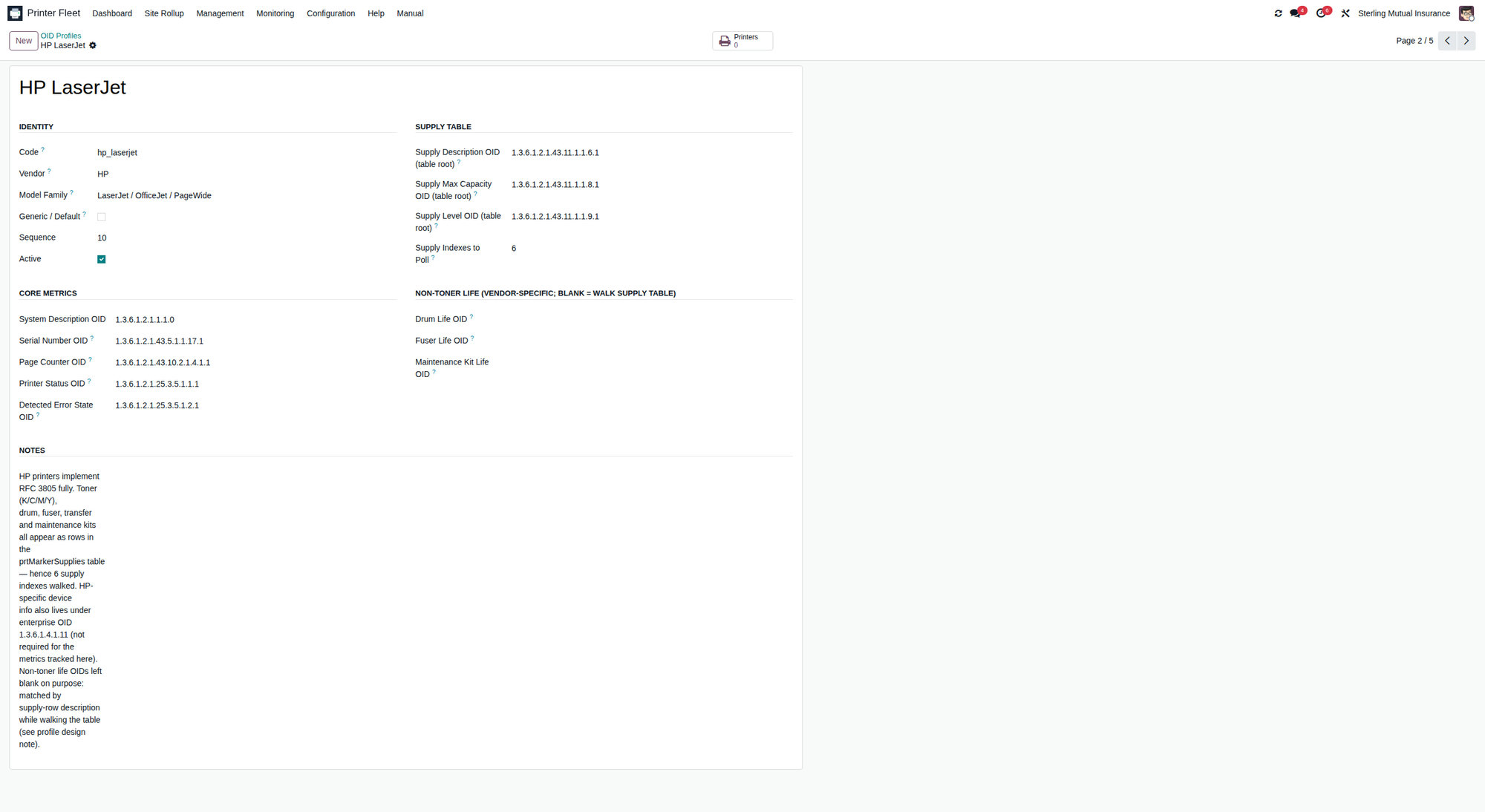
An OID profile is the set of SNMP object identifiers PFM uses to read a given family of devices. Each profile carries:
- Profile Name, Code (e.g.
hp_laserjet), Vendor, Model Family, a Generic / Default flag, sequence, and notes. - Core OIDs: System Description, Serial Number, Page Counter, Printer Status, Detected Error State.
- Supply-table OIDs (table roots): Supply Description, Supply Max Capacity, Supply Level, plus Supply Indexes to Poll (default 4 - covers K/C/M/Y).
- Non-toner life OIDs: Drum Life, Fuser Life, Maintenance Kit Life.
The module ships a generic/default profile using the standard Printer-MIB and Host-Resources-MIB OIDs, which works for most SNMP-compliant printers out of the box. Create a vendor-specific profile only when a device family uses non-standard OIDs; assign it to the relevant printers via the printer record's OID profile field. Printers with no profile assigned fall back to the default.
6. Alert engine configuration
6.1 Global thresholds and behaviour
Configuration → Settings:
| Setting | Default | Purpose |
|---|---|---|
| Default Toner Warning % | 20 | Warning alert below this (new printers) |
| Default Toner Critical % | 5 | Critical alert below this (new printers) |
| Toner Replacement Detection Jump % | 40 | If a toner level jumps up by this much between polls, auto-log a replacement in service history |
| Auto-Resolve Alerts | On | Clears alerts once SNMP sees the issue fixed |
| Warranty Warning Window (days) | 60 | Raise a warranty alert this many days before expiry |
| Escalation Delay (minutes) | 60 | How long a critical may sit unacknowledged before escalation |
| Escalation Contact | - | User re-notified/emailed on escalation |
The warning/critical defaults apply to new printers. Existing printers keep their own Toner Warning % / Toner Critical % fields, editable per record.
6.2 Per-type / per-printer thresholds
Configuration → Alert Thresholds lets managers define thresholds by consumable type, optionally scoped to a specific printer, each with a warning level and critical level. Effective threshold resolution is:
- A per-printer, per-type threshold, if defined; otherwise
- A global per-type threshold; otherwise
- For toner types, the printer's own toner warn/critical fields.
This lets you, for example, set a tighter warning level on a critical high-volume device while leaving the fleet default alone.
6.3 Alert lifecycle (reference)
Alerts move through New → Notified → Acknowledged → Escalated → Resolved. Criticals left unacknowledged past the Escalation Delay move to Escalated and re-notify the escalation contact. Auto-resolve clears supply, offline, and error alerts once the next poll confirms the condition cleared. See the User Guide §6 for the operator-facing workflow.
6.4 Escalation and email
- Email requires a working Outgoing Mail Server (Settings → Technical → Email → Outgoing Mail Servers). Without it, escalation emails and digests cannot be delivered.
- The Printer Alert Escalation cron (default every 15 min) re-notifies and emails the escalation contact for unacknowledged criticals.
7. Notifications, subscriptions, and digest
7.1 Subscriptions
Configuration → Notification Subscriptions (managers see all; users manage their own via Monitoring → My Notifications).
Each subscription defines:
- Sites (
location_ids) - empty means all sites. - Minimum Severity - All (info, warning, critical) / Warning and above / Critical only.
- Channels - Email, In-App, SMS, and Webhook.
- Digest mode - batches matching alerts into one daily summary email.
Webhook is manager-only. The Webhook channel and its URL field are restricted to the Printer Manager group because a server-side POST to an arbitrary user-supplied URL is an SSRF primitive. The module hardens outbound webhooks: it refuses redirects, pins the validated IP to defeat DNS-rebinding, and blocks loopback / link-local / private / reserved / cloud-metadata / CGNAT targets. Webhook URLs must be
http://orhttps://.
7.2 Daily digest
The Printer Alert Daily Digest cron (daily) sends one summary email per digest-mode subscriber. Enable the cron and ensure outgoing mail is configured.
7.3 SMS backends
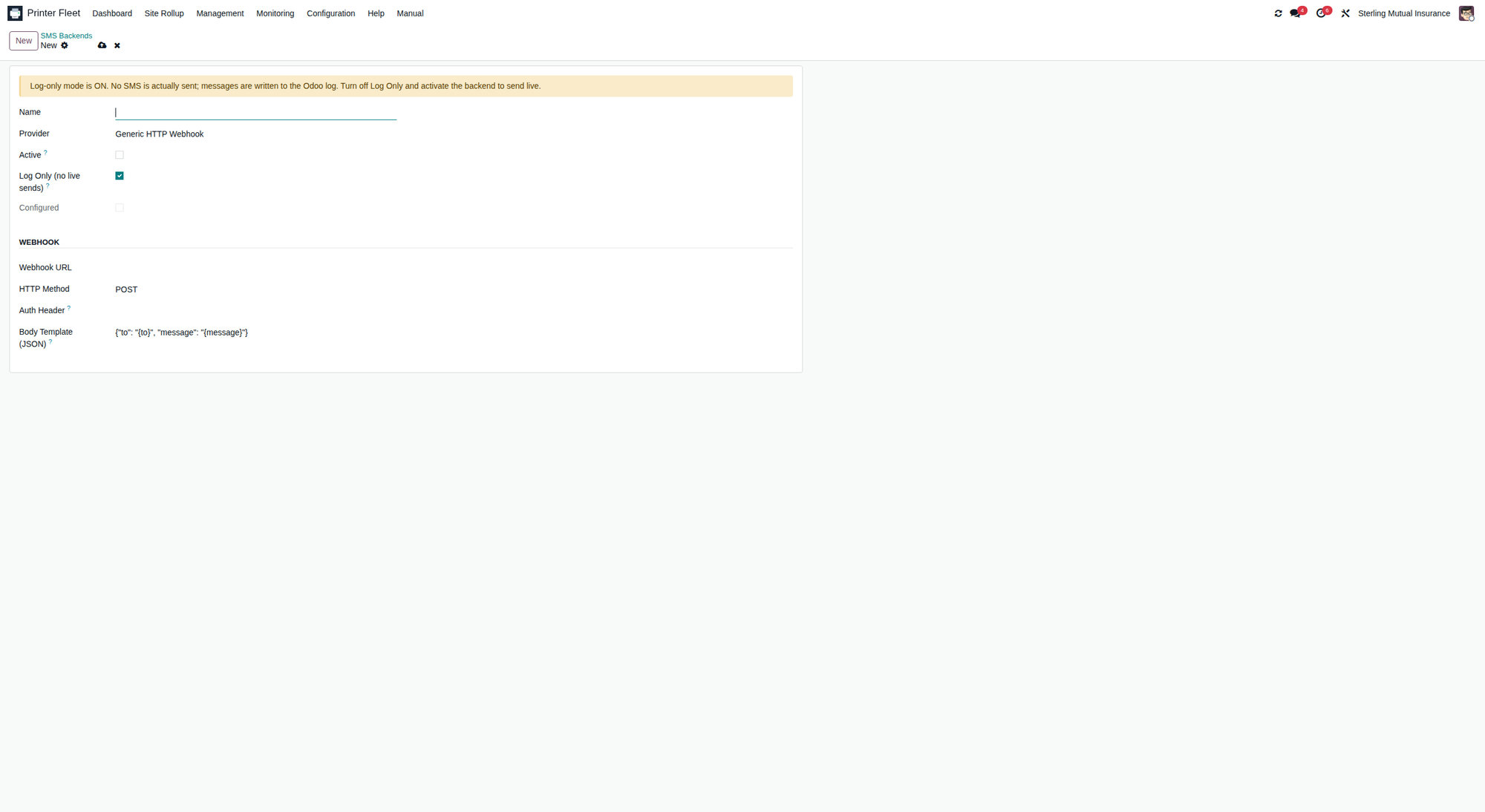
Configuration → SMS Backends (manager-only). Create a backend with a Provider:
- Twilio - needs Account SID, Auth Token, and a sending number. Calls
Twilio's REST API over HTTPS; no
twiliopip package required. - Generic HTTP Webhook - POSTs to your own SMS relay.
Each backend has a Log Only (no live sends) flag that defaults ON - outbound SMS is written to the Odoo log instead of being sent. Keep it ON in test/staging and turn it off only in production when you are ready to send. Subscribers who enable SMS must supply their own destination number.
8. Wallboard / kiosk token setup
The wallboard is a public, read-only, auto-refreshing fleet page guarded by a token.
- Configuration → Settings → Wallboard Kiosk Token. Click Generate for a strong random token (or set your own). Leaving it blank disables public wallboard access.
- On the kiosk, browse once to:
https://YOUR_ODOO_HOST/printer_fleet/wallboard?token=YOUR_TOKENThe token is validated, moved into an httponly cookie, and stripped from the URL (303 redirect) so operators can bookmark the bare URL. - Kiosk Cookie Lifetime (days) - default 30, clamped 1-365 - controls how long the cookie stays valid before the token must be re-entered.
Serve over HTTPS so the kiosk cookie is set with
secure. Rotating the token instantly revokes all kiosks on their next load - use this to de-authorise a lost or decommissioned display. One fixed cookie name is used, so if you need two different kiosk tokens in the same browser profile, run them in separate browser profiles.
If a kiosk shows "403 - invalid or missing kiosk token": the token is blank,
mismatched, or the cookie expired - re-seed by loading the ?token= URL once.
9. QR labels
- QR Label Base URL (Settings) - optionally override the URL encoded in printer QR labels. Leave blank to encode the standard Odoo backend link to the printer record.
- QR image generation requires the
qrcodelibrary; label PDF export requireswkhtmltopdf(both perpfm-INSTALL.md§2). The mobile technician page the QR points to authenticates as a normal Odoo user.
10. Scheduled actions (crons)
All operational crons ship DISABLED by default so the module is inert until you configure printers. Enable them under Settings → Technical → Automation → Scheduled Actions (Developer Mode).
| Cron | Default interval | Ships active? | Purpose |
|---|---|---|---|
| Printer SNMP Monitoring | 5 min | No | Polls SNMP printers (status, toner, page count, alerts). Enable first. |
| Printer Consumable Refresh | 1 day | No | Syncs toner consumables, snapshots levels for burn-rate, runs reorder checks |
| Printer Page-Count Snapshot | 1 day | No | Records daily page-count deltas for volume trends / monthly report |
| Printer Alert Escalation | 15 min | No | Re-notifies + emails escalation contact for unacknowledged criticals |
| Printer Warranty Check | 1 day | No | Raises warranty alerts within the warning window |
| Printer Alert Daily Digest | 1 day | No | One summary email per digest-mode subscriber |
| Printer Job History Cleanup | 1 day | No | Deletes print-job history older than the retention setting |
| Printer Discovery: Background Scan Runner | 1 day | Yes | No-op unless a scan is queued - leave enabled |
| Printer Fleet Manager License Check-in | 7 days | Yes | Periodic license check-in - leave enabled |
Enable Consumable Refresh and Page-Count Snapshot alongside SNMP polling to get burn-rate/days-left predictions, volume history, and reorder checks. Confirm the Odoo runtime has at least one cron worker/thread.
11. Licensing
PFM is a commercial OPL-1 module. Licensing is designed to be production-friendly: a licensing communication problem never interrupts printer management. Activate your license so your installation shows as licensed and you receive your Maintenance & Support entitlements.
11.1 Activation wizard (online)
- Printer Fleet → Configuration → Licensing (Printer Manager required).
- Enter the key and click Activate. The module makes a single outbound HTTPS request to the ModuleSmith license server.
- On success: "Licensed <name> - updates until <date>." and the banner clears.
What is transmitted - exactly four fields: the license key, your Odoo database identifier (a random per-database UUID), the installed module version, and a one-time security nonce. No printer data, IP addresses, user names, company data, document contents, or telemetry ever leave the server. All licensing responses are cryptographically verified by the module.
11.2 Firewall allowlist
Allow only: license.modulesmith.com, TCP 443 (HTTPS), outbound only. No
inbound rule needed. To route through a corporate proxy, override the base URL
in Settings → License Server URL.
11.3 If the license server is unreachable
If your server temporarily cannot reach the license server, the module continues to operate normally; you may see an informational, dismissible banner until connectivity is restored. If a banner persists, see the troubleshooting section or contact [email protected].
11.4 Offline / air-gapped activation
For servers with no outbound internet:
- Settings → Printer Fleet → Licensing, enter the key, click Generate
Offline Request. The wizard produces a small signed JSON blob (also
downloadable as
pfm-offline-request.json) containing only key, db_uuid, module_version, and timestamp. - Email the blob to [email protected].
- Support returns a signed offline-activation response.
- Paste it into Offline Activation Response and click Apply Offline Activation. The module verifies the signature and confirms the response was issued for this key and this database before accepting it, then stores the expiry ("Offline activation accepted - valid until <date>.").
While a valid offline activation is present, no licensing network communication occurs. Request a fresh grant before the printed expiry to stay activated.
License state survives module upgrades; you do not need to re-activate after upgrading.
12. Optional Purchase bridge
printer_fleet_manager_purchase (19.0.6.4.0) bridges PFM to Odoo Purchase:
when a consumable crosses its reorder threshold, a daily cron creates a draft
purchase.order (RFQ). It is opt-in per consumable (auto_po_enabled
defaults off), de-duplicates against open RFQ/PO lines, posts a chatter note on
the printer, and never auto-confirms - a human always reviews the RFQ. Its
cron (Printer Fleet: Auto-Create Reorder RFQs) ships DISABLED. Map each
consumable to a purchasable product and vendor, enable auto_po_enabled on the
ones you want, then enable the cron. Details in pfm-INSTALL.md §7.
13. Maintenance and troubleshooting
For the complete, itemised troubleshooting matrix, see pfm-INSTALL.md §10.
Common administrator-facing issues:
| Symptom | Likely cause | Fix |
|---|---|---|
| Discovery finds nothing | Odoo host cannot reach the printer subnet; ACL blocks UDP/161 or the probe port | Verify L3 reachability (nc -vz IP 9100, ping); open UDP/161 + probe port from Odoo host; narrow the range; raise scanner timeout |
| Discovered but no model/serial/toner | SNMP disabled, wrong community string, or device is SNMPv3-only | Enable SNMP v1/v2c, set the correct community, re-scan. SNMPv3 is unsupported |
| No SNMP updates at all | Printer SNMP Monitoring cron disabled, or per-printer SNMP flag off | Enable the cron; enable SNMP on the printer; confirm a cron worker is running |
| "Offline - Port not responding" but device is up | Reachability check hits the wrong TCP port | Set the correct Port on the printer record |
| SNMP polls time out on some devices | Slow devices / congested VLAN / short timeout | Raise SNMP Timeout (ms) |
QR labels blank / No module named 'qrcode' |
qrcode not in Odoo's Python env |
pip install "qrcode[pil]" into Odoo's env, restart |
| QR label / monthly report fails | wkhtmltopdf missing |
Install the patched wkhtmltopdf 0.12.6, restart |
| Wallboard "403 invalid/missing token" | Token blank, mismatched, or cookie expired | Set/generate token; load ?token= once; serve over HTTPS |
| License banner won't clear | Cannot reach license.modulesmith.com:443, or a proxy is altering the response |
Allow TCP/443 outbound; set a proxy-friendly License Server URL; or use offline activation. The banner is informational - printer management is not interrupted |
| Background scan stuck "Queued/Scanning" | Background Scan Runner cron disabled or worker died | Ensure the runner cron is active; Reset the scan |
| Auto-RFQ never creates RFQs | Purchase-bridge cron disabled, consumables unmapped, or auto_po_enabled off |
Enable the cron; map product/vendor; enable per-consumable auto-PO |
13.1 Support escalation
When contacting [email protected], include: the module version (19.0.7.1.1), deployment type (on-prem/Docker/Odoo.sh) and OS, the relevant Odoo log excerpt around the failure (secrets redacted - the module never logs the license key), and, for SNMP/discovery issues, the printer make/model, SNMP version, and whether UDP/161 + the probe port are reachable from the Odoo host.
ModuleSmith Printer Fleet Manager 19.0.7.1.1 - © ModuleSmith. Licensed under OPL-1.